
Phones and Calls
If your phone system is with us, the sidebar has two extra pages under Overview: Phones and Calls. They appear automatically once your phone system is set up, so if you can’t see them, you don’t have one with us yet.
Changes you make here work straight away, on every desk phone and app.
Your phone
Section titled “Your phone”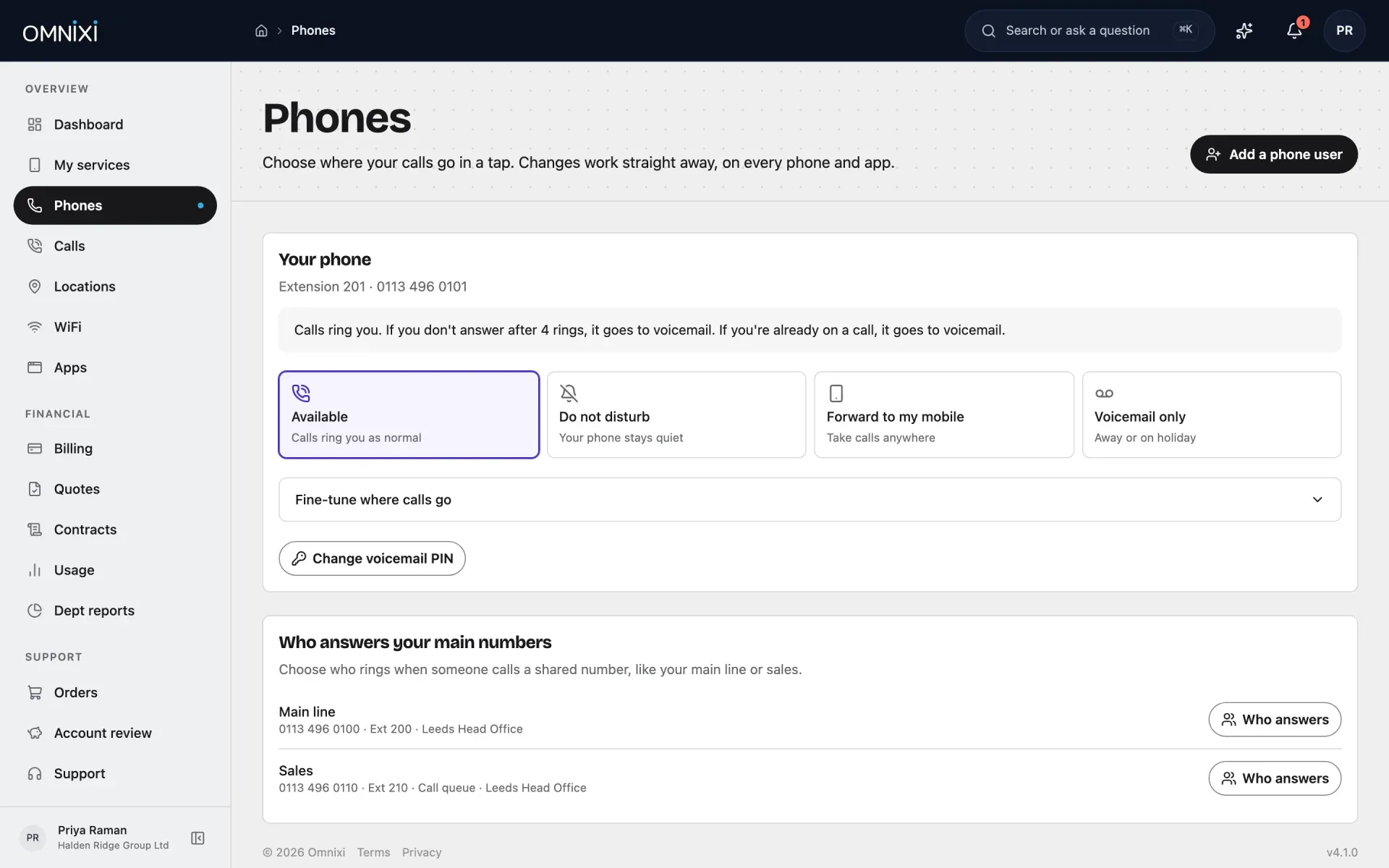
The Your phone card at the top of Phones tells you, in a sentence, what happens to a call right now. Below it are your one-click statuses:
| Status | What it does |
|---|---|
| Available | Calls ring you as normal |
| Do not disturb | Your phone stays quiet. Callers go to voicemail if you have it, or hear that you’re busy |
| Forward to my mobile | Every call goes straight to the mobile number on your profile. Only shown if your profile has a UK mobile number |
| Voicemail only | Every call goes straight to voicemail |
Only one status is on at a time. Turning one on turns the others off.
How long for
Section titled “How long for”When you click any status except Available, the Portal asks how long for:
- Until I turn it off
- For 1 hour
- Until 5pm today (while there’s some of the day left)
- Until 9am tomorrow
- Until 9am Monday (from Friday afternoon and at weekends)
- Pick a date and time… for anything else, up to about three months ahead
When the time comes, your phone goes back to how it was before, by itself. A line under the summary shows what’s set and until when. Click End now to put it back early.
Available is the way back: one click, no questions.
Fine-tune where calls go
Section titled “Fine-tune where calls go”Open Fine-tune where calls go to set what happens when you can’t take a call:
- If you don’t answer: Keep ringing, Send to voicemail or Send to someone else, and after how many rings (each ring is about six seconds)
- If you’re already on a call, send callers to someone else: switch this on to pick where they go
- Voicemail: lets callers leave a message when you can’t answer
Wherever you send calls, you can pick a colleague by name, click My mobile, or type any UK landline or mobile number. Click Save, or Undo changes to go back to what’s live.
Voicemail PIN
Section titled “Voicemail PIN”Click Change voicemail PIN to set a new PIN for listening to voicemail from a phone. Use 6 to 30 digits and type it twice. We never show or keep the PIN.
If your phone isn’t there
Section titled “If your phone isn’t there”The Portal finds your phone by your email address. If you see We couldn’t find your phone, no phone in your phone system uses the email you sign in with. Ask an account admin, or raise a support ticket and we’ll link it.
Your team
Section titled “Your team”Your team lists your colleagues with their extensions, so you know who to dial. If there are more than eight, a search box finds people by name or extension.
Admins see Your team’s phones instead, with a Manage button on each person. It opens the same settings as your own phone, which is handy when someone is off sick and their calls need to go somewhere else. Viewers can see their own phone’s settings but can’t change them.
Add a phone user (admin only)
Section titled “Add a phone user (admin only)”Click Add a phone user at the top of Phones to set someone up:
- Under Who, pick an existing contact, or choose Someone new and type their name
- Check their Work email. They sign in to the phone app with it
- Choose their Location, if you have more than one
- Give them a Direct number, an Extension, or both
- Choose a Package. Each one shows its monthly price
- Tick the box to invite them to the Portal too, if you’d like them to manage their own phone and see their calls
- Read the summary at the bottom, which says what you’re ordering and what it costs, then click Place order
This places an order, so your approval settings apply. Once it’s placed (or approved) we set the phone up, which usually takes a few minutes, and email the person how to get started. A package marked Ready within a working day takes longer, because we need to add a licence for it first. You can follow it under Orders.
Main numbers (admin only)
Section titled “Main numbers (admin only)”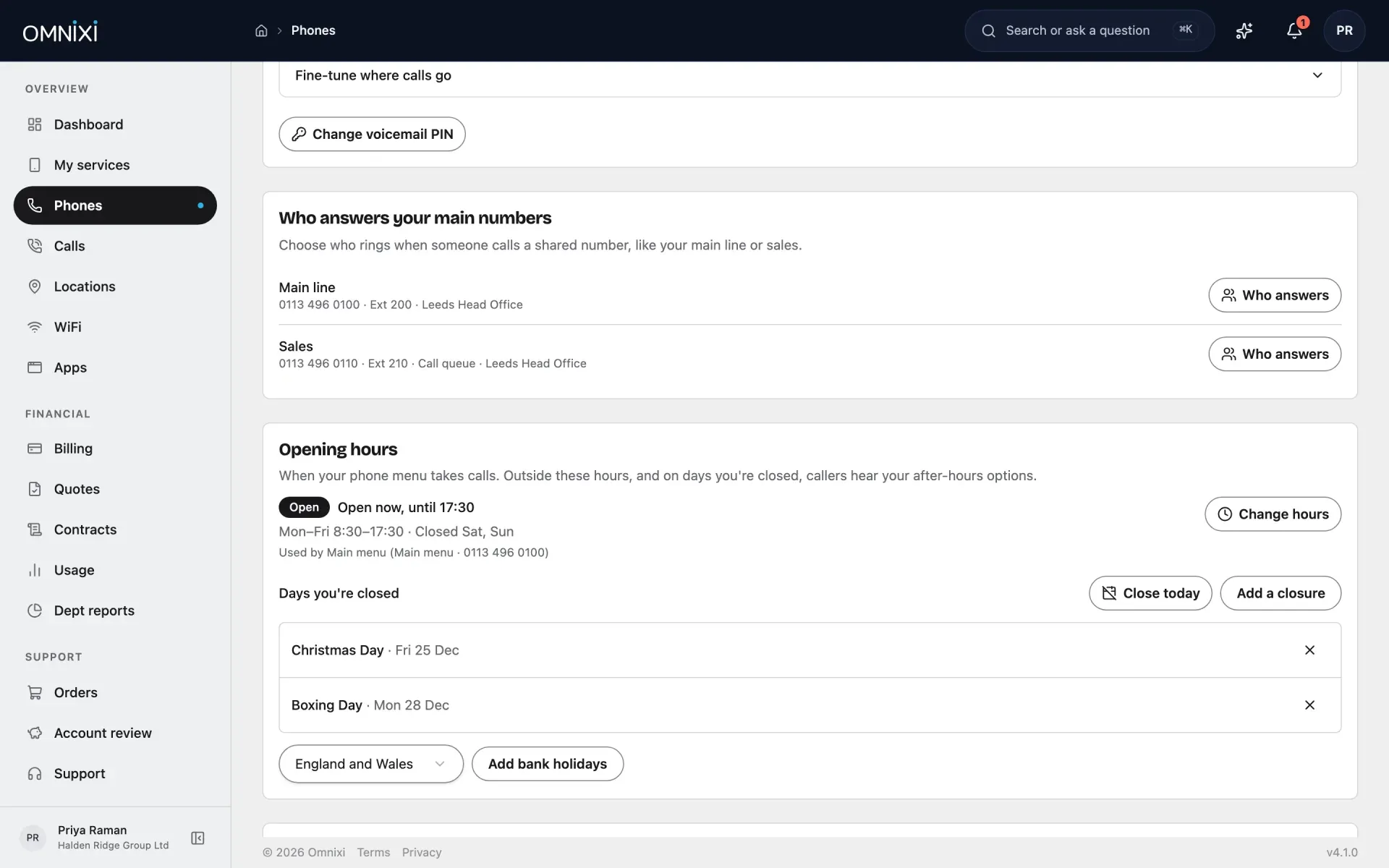
Who answers your main numbers lists your shared numbers, such as your main line or sales line. Click Who answers on one to open it.
Send a main number somewhere else
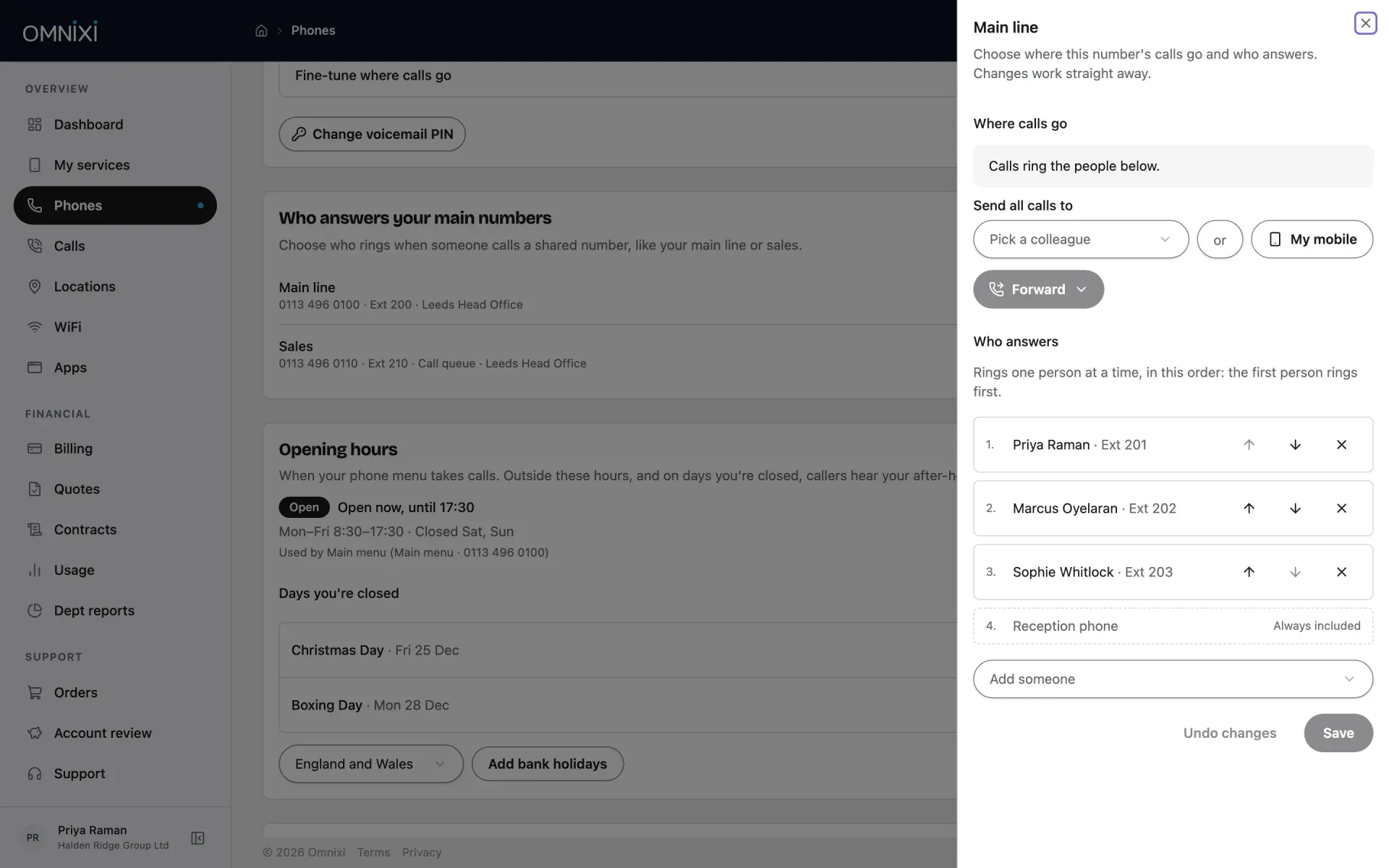
Section titled “Send a main number somewhere else”Under Where calls go, pick a colleague, click My mobile or type a number, then click Forward and choose how long for. While a number is forwarded, nobody in the group rings.
A timed forward goes back by itself. Click Stop forwarding (or End now on a timed one) to put it back yourself.
Change who answers
Section titled “Change who answers”Under Who answers:
- Use Add someone to add a person
- Click the cross to remove someone
- Where the order matters, use the arrows to move people up or down. The first person rings first
Click Save when you’re done. Someone always has to answer the number, so you can’t remove everyone.
A few things can only be changed by us:
- Phones marked Always included, such as a shared reception phone
- Numbers that share calls by weight or skill
Raise a support ticket if either needs changing.
Opening hours (admin only)
Section titled “Opening hours (admin only)”If you have a phone menu (“press 1 for sales”), the Opening hours card shows when it takes calls and whether you’re open right now. Outside these hours, and on days you’re closed, callers hear your after-hours options.
- Change hours: switch each day on or off and set when you open and close. Use Monday’s hours for Tuesday to Friday saves typing
- Close today: closes for the rest of today, in one click
- Add a closure: give it a name (What for), a First day and a Last day
- Add bank holidays: choose England and Wales, Scotland or Northern Ireland to add the next 12 months’ bank holidays
- Click the cross beside a closure to remove it
If your hours are set up in a way the page can’t show (for example, closing for lunch), you’ll see a note asking you to contact us to change them.
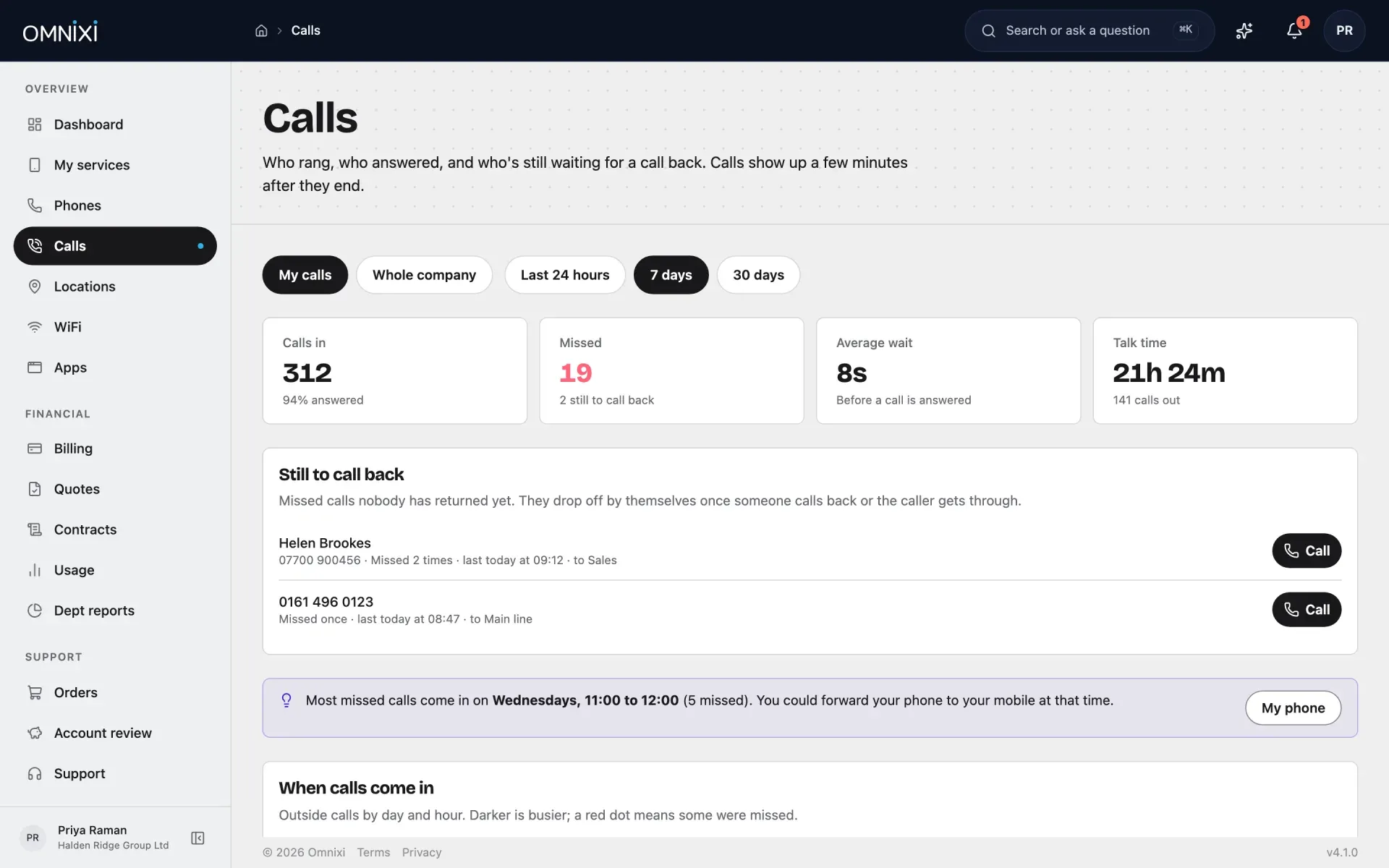
Calls shows who rang, who answered, and who is still waiting for a call back. Calls show up a few minutes after they end.
Use the buttons at the top to choose Last 24 hours, 7 days or 30 days. Admins can also switch between My calls and Whole company.
This period in numbers
Section titled “This period in numbers”| Tile | What it shows |
|---|---|
| Calls in | Calls from outside, and the percentage answered |
| Missed | Calls nobody answered, and how many are still to call back |
| Average wait | How long callers wait before a call is answered |
| Talk time | Total time on calls, and the number of calls made |
Still to call back
Section titled “Still to call back”This list is the one to watch. It shows missed calls that nobody has returned yet, with how many times they rang and which number they called. Click Call to ring them.
People drop off the list by themselves, once someone at your company calls them back or they ring again and get through.
When calls come in
Section titled “When calls come in”A grid of days and hours shows when outside calls arrive. Darker squares are busier, and a red dot means some calls were missed. If missed calls bunch up at one time of the week, a tip above the grid says when, with a shortcut to forward your phone or a main number at that time.
All calls
Section titled “All calls”Every call in the period, grouped by day. Each call is one line, however many phones rang, with the caller’s name where we know it, who answered, which number they called and how long it lasted. Filter by Missed, Incoming or Outgoing.
Missed-call alerts (admin only)
Section titled “Missed-call alerts (admin only)”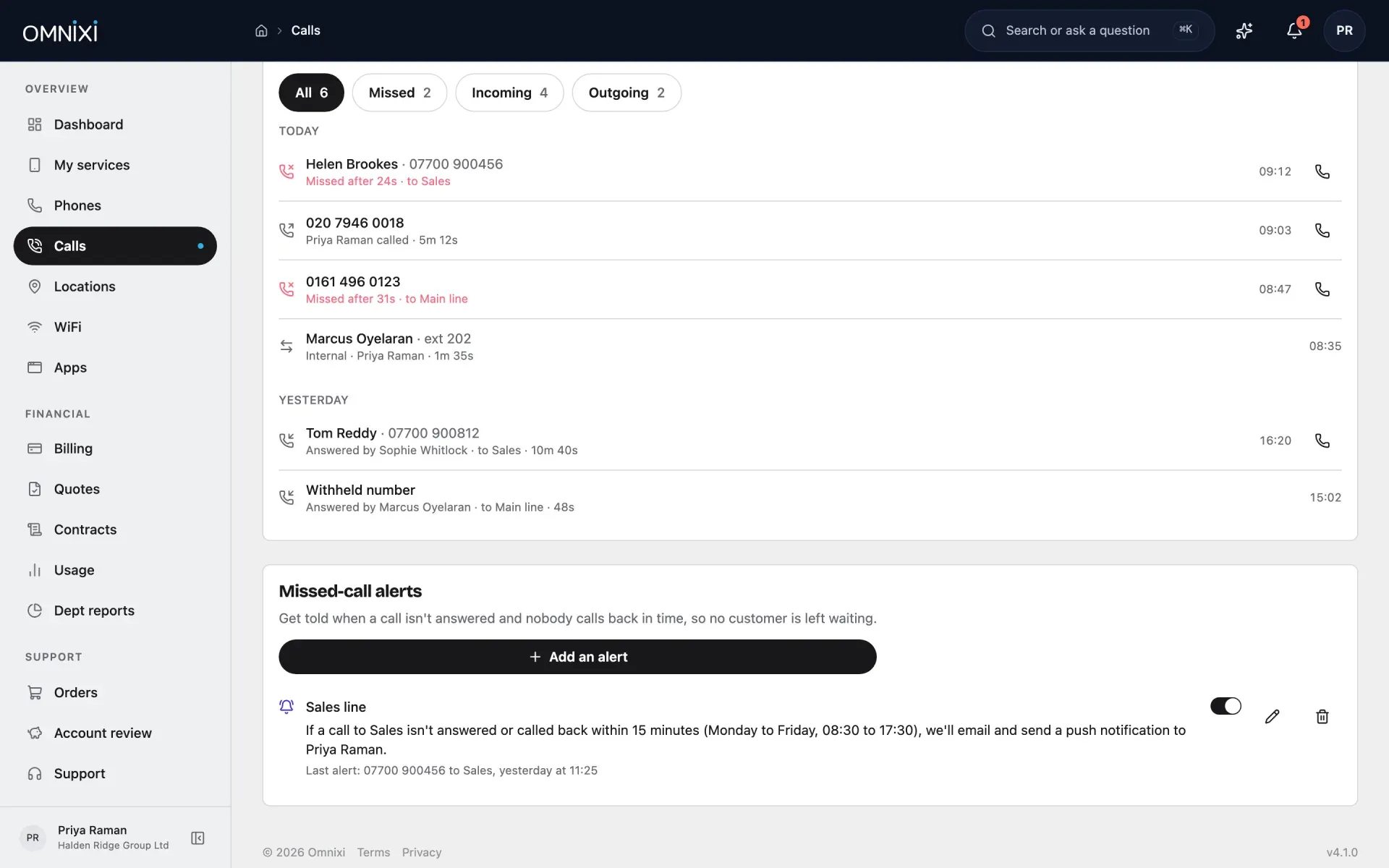
At the bottom of Calls, missed-call alerts tell someone when a call isn’t answered and nobody calls back in time, so no customer is left waiting.
Click Add an alert and choose:
| Option | What it does |
|---|---|
| Name | What the alert is called |
| Which calls | Calls to any main number, calls to chosen main numbers, or any outside call including direct dials |
| Wait for a call back | How long to give your team before the alert is sent |
| When | Which days, and between which times (or All day) |
| How | Email, a push notification to the mobile app, or both |
| Who to tell | The people to alert. If you choose nobody, alerts come to you |
Each alert is written out as one sentence, so you can check it says what you meant. Use the switch to turn an alert on or off, the pencil to change it and the bin to delete it.
A push alert on the mobile app has a Call back button. See Phones and calls on mobile.
On your phone
Section titled “On your phone”The mobile app has the everyday parts of both pages: your status, the call-back list, your team, and one-tap versions of forwarding a main number, closing for the day and switching alerts on and off. See Phones and calls on mobile.