
Phones and Calls on Mobile
If your phone system is with us, the app lets you change where your calls go and ring people back, wherever you are. Changes work straight away, on every desk phone and app.
You’ll find it in two places:
- On the Home tab, the Your phone row shows your status. Tap it to open Phones
- Tap your initials at the top right to open Account, then tap Phones
If you can’t see either, your phone system isn’t with us yet, or it hasn’t been set up.
Your phone
Section titled “Your phone”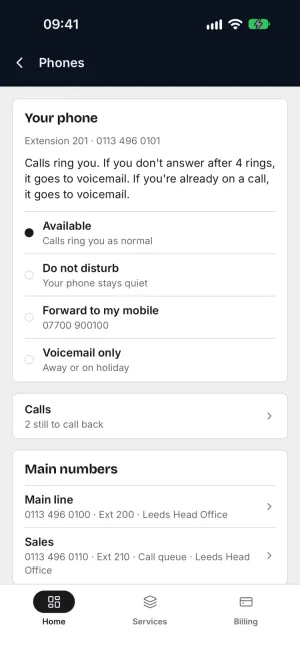
The Your phone card tells you, in a sentence, what happens to a call right now. Below it are your statuses:
| Status | What it does |
|---|---|
| Available | Calls ring you as normal |
| Do not disturb | Your phone stays quiet. Callers go to voicemail if you have it, or hear that you’re busy |
| Forward to my mobile | Every call goes straight to the mobile number shown. Only there if your profile has a UK mobile number |
| Voicemail only | Every call goes straight to voicemail |
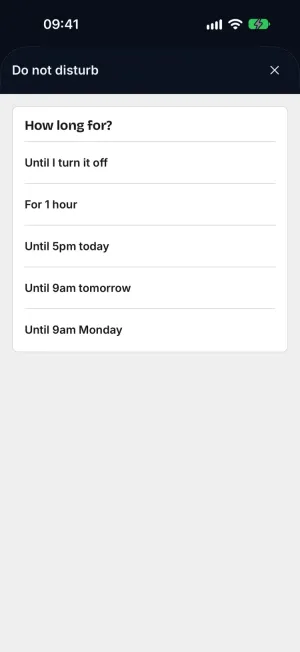
Tap a status, then choose how long for:
- Until I turn it off
- For 1 hour
- Until 5pm today (while there’s some of the day left)
- Until 9am tomorrow
- Until 9am Monday (from Friday afternoon and at weekends)
When the time comes, your phone goes back to how it was before, by itself. Tap End now to put it back early, or tap Available, which takes one tap and asks nothing.
To set what happens when you don’t answer or are already on a call, to pick an exact date and time, or to change your voicemail PIN, use the Portal.
If your phone isn’t there
Section titled “If your phone isn’t there”The app finds your phone by your email address. If you see We couldn’t find your phone, no phone in your phone system uses the email you sign in with. Raise a support ticket and we’ll link it.
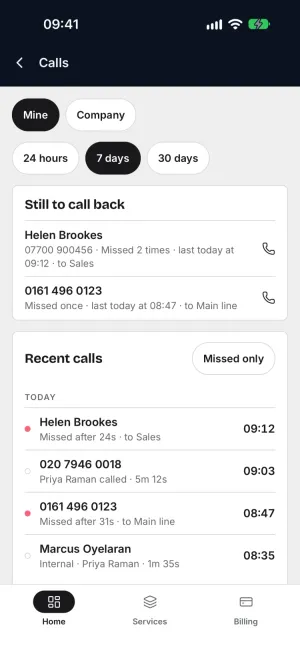
On Phones, tap Calls to see who rang. The row tells you how many people are still waiting for a call back.
- Still to call back lists missed calls that nobody has returned yet, with how many times they rang and which number they called. Tap one to ring them
- Recent calls lists every call, grouped by day. A red dot marks a missed call. Tap Missed only to hide the rest, and tap a call to ring that number
- Choose 24 hours, 7 days or 30 days at the top. Admins can also switch between Mine and Company
Calls show up a few minutes after they end.
Calling back from your business number
Section titled “Calling back from your business number”When you tap someone to ring them back, the app places the call through the Webex app if it’s on your phone. That way the call comes from your business number, and the person drops off the call-back list by themselves.
If you don’t have the Webex app, your phone’s own dialler opens and the call comes from your mobile number. They’ll stay on the list until someone calls them from a work phone or they ring again and get through.
Your team
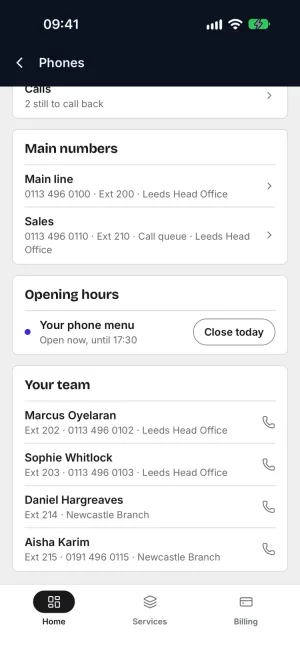
Section titled “Your team”Your team lists your colleagues with their extensions and numbers. Tap someone to ring them. If there are more than eight people, search by name or extension.
Ringing a colleague who only has an extension needs the Webex app on your phone.
For admins
Section titled “For admins”Admins get three more things in the app, for the moments when you’re away from your desk.
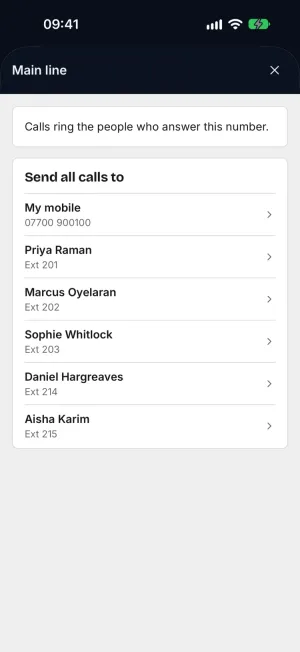
Send a main number somewhere else
Section titled “Send a main number somewhere else”Under Main numbers on Phones, tap a shared number such as your main line.
- Under Send all calls to, tap My mobile or a colleague
- Choose how long for
While a number is forwarded, nobody in the group rings, and its row says where it’s going. Open it again and tap Stop forwarding (or End now on a timed forward) to put it back.
Close today
Section titled “Close today”Under Opening hours, each site with a phone menu shows whether it’s open now. Tap Close today, then confirm, and callers hear your after-hours options for the rest of the day.
Changed your mind? Tap Reopen, then confirm. If today was already a planned closure, such as a bank holiday, Reopen removes that closure, and the app names it before you confirm. A closure that covers several days can only be changed in the Portal.
Missed-call alerts
Section titled “Missed-call alerts”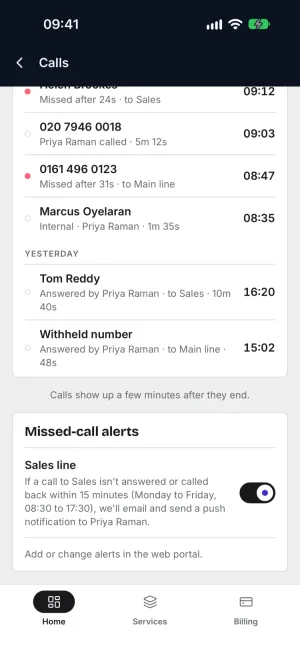
At the bottom of Calls, each missed-call alert is written out as one sentence with a switch beside it. Switch one off while you’re closed, and back on when you return.
If an alert is set to send a push notification, it arrives on your phone as Missed call with the caller’s name or number. Tap it to open Calls, or tap Call back on the notification to ring them straight away.
What stays in the Portal
Section titled “What stays in the Portal”The app has the one-tap versions. To change who answers a main number, edit your weekly opening hours, plan closures, set up or change an alert, manage a colleague’s phone, or add a phone user, use the Portal.